A recorded session revealed a scrambled-picture bug when the captured game window changed resolution. Whole game window recording now keeps its video output at 1920 × 1080, even while the browser view changes size.
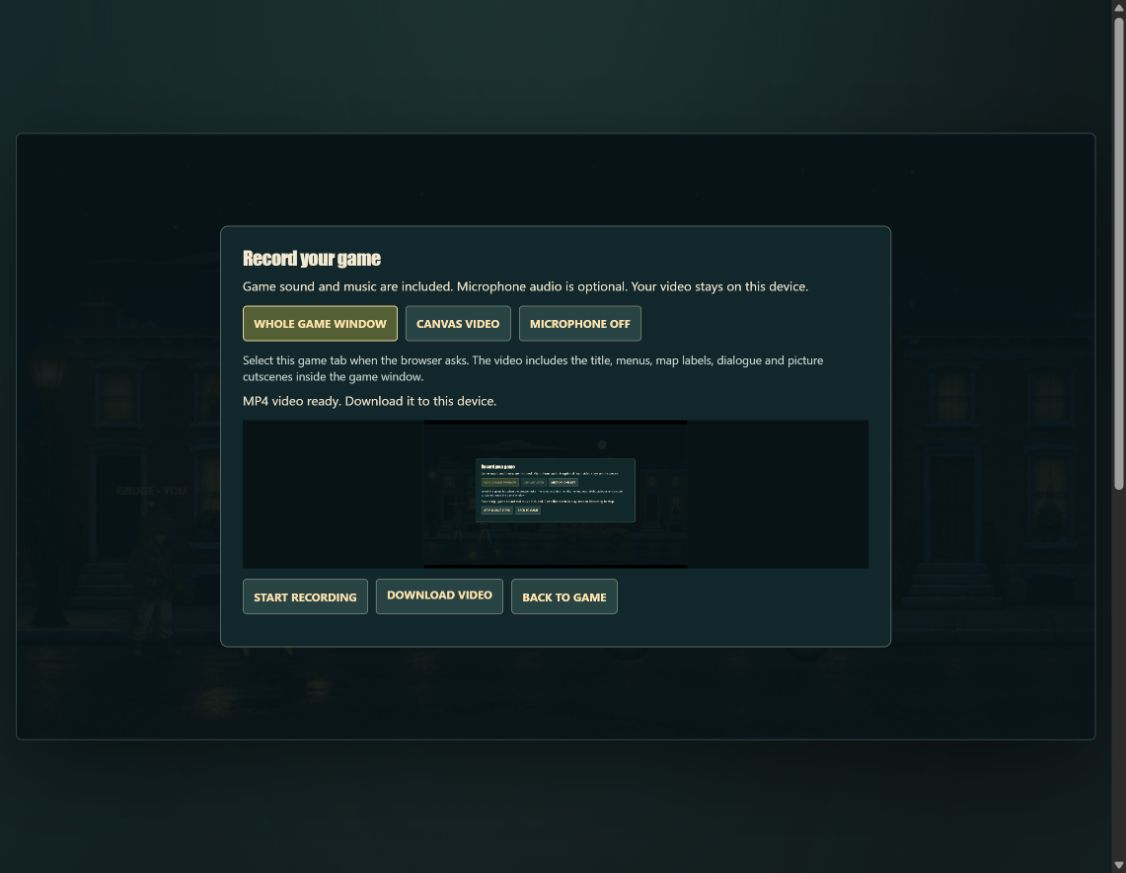
Record the whole experience
Open Pause → Recording, or use Recording in the title screen’s Options. Choose Whole game window, press Start Recording and select the game tab when the browser asks. The capture includes the title, menus, map labels, dialogue and picture cutscenes, along with gameplay.
The recorder waits for a real captured frame before starting. It fits changing capture sizes into the same 1080p video, preserving the picture’s proportions. A native recording test changed the source resolution repeatedly, and a separate cropped-tab test resized the browser view. Both exported videos decoded completely with a constant frame size.
Your sound, your device
Game sound and music are included. The microphone starts off and can be switched on or off in the recorder. Stop the recording to replay it and download the browser’s native MP4 or WebM file. Videos stay on the visitor’s device.
Canvas video remains available where whole-window capture is unavailable. Its existing limits still apply: it records the game canvases, while HTML menus, labels and picture cutscenes need Whole game window.